

How do I Create an Email Marketing Campaign?
With our Email Marketing app, creating your own campaign has never been easier to do! Below, we will walk you through a step-by-step process for how to go about creating your very first email marketing campaign. If you have questions at any point or need additional assistance, we encourage you to contact your Scorpion Marketing Manager.
- Navigate to the Email Marketing section by selecting the Marketing Suite in the left-hand navigation and clicking on Email Marketing in the upper navigation. You can also go straight to the app and get started.

- From your Email Marketing home page, select the ‘Create Campaign’ button on the right-hand side to create a new marketing campaign. Our easy-to-use campaign wizard will guide you every step of the way from here!
- Create a new campaign from scratch, providing the campaign name, and clicking Start under each section:
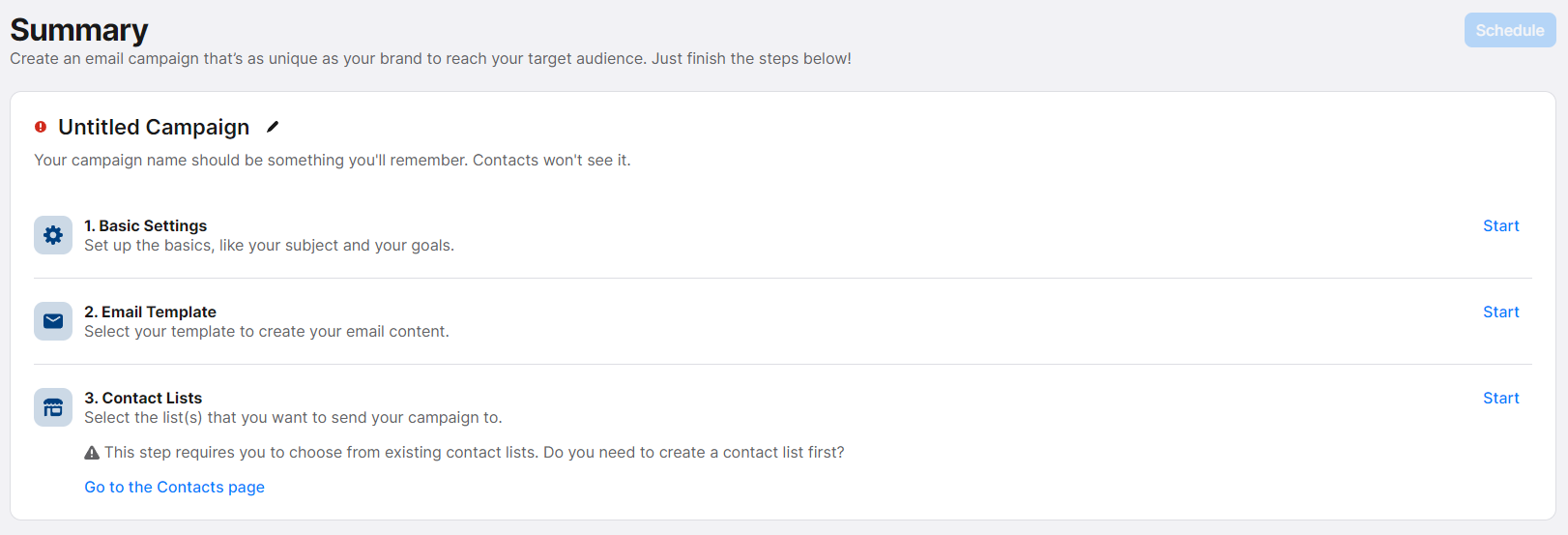
Basic Settings
- Set up your Campaign Type by defining marketing goals for the campaign and individual emails, including the click or email rates desired.
- Customize your Email Header by typing out your Subject Line and Preview Text.
- Set your Sender Information by confirming your Email Address, Reply To, Location, and whether you want to use a Call Tracking number.

Email Template
- Choose the appropriate email template, and manage and configure the email by customizing it to your preferences.
- Preview the email in different screen sizes and send test emails.

Contact Lists
- Choose your Contact List from your existing lists.

- Review each step and edit as needed, and then schedule your post by clicking Schedule in the top-right corner and selecting the send date and time.

And that’s it! Once you walk through the wizard, you’ll be ready to send your very first email.