

How to Publish a Post to Social Media
With our Social Media app, creating and publishing your own posts has never been easier! Below, we will walk you through a step-by-step process for posting to your social media profile(s). If you have questions at any point or need additional assistance, we encourage you to contact your Scorpion Account Manager.
- Navigate to the Social Media section by selecting the Marketing Suite in the left-hand navigation and clicking on Social in the upper navigation. You can also go straight to the app and get started.

- From the Social Media home page, select Create Post in the top right hand corner.

- Provide a title for your post, select which account(s) you want to publish to, and set your desired publishing time.
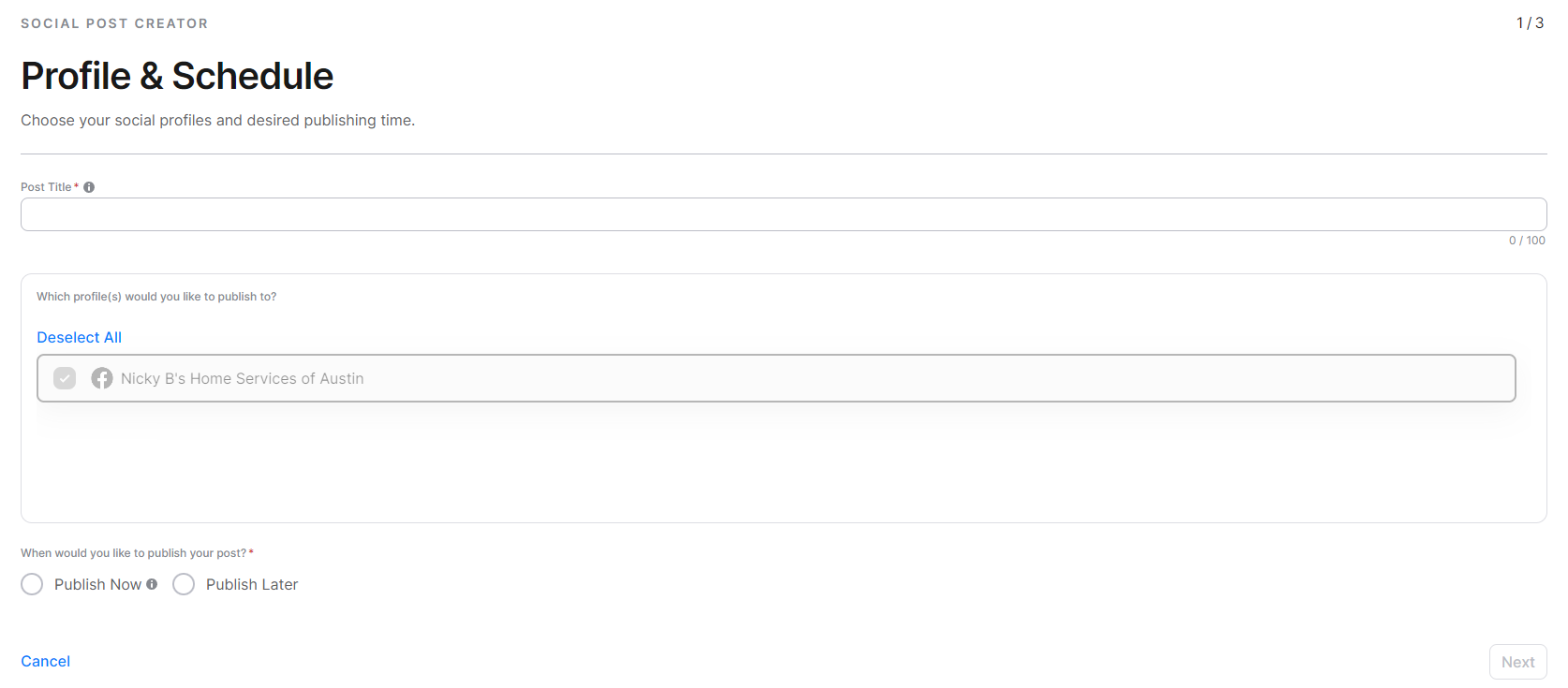
- Click Next and customize your post using our easy-to-use Publishing Wizard, which will guide you through every step from here!
- Enter your post text and any desired links and photo or video attachments. Be sure to note the Media Requirements by hovering over the tooltip.
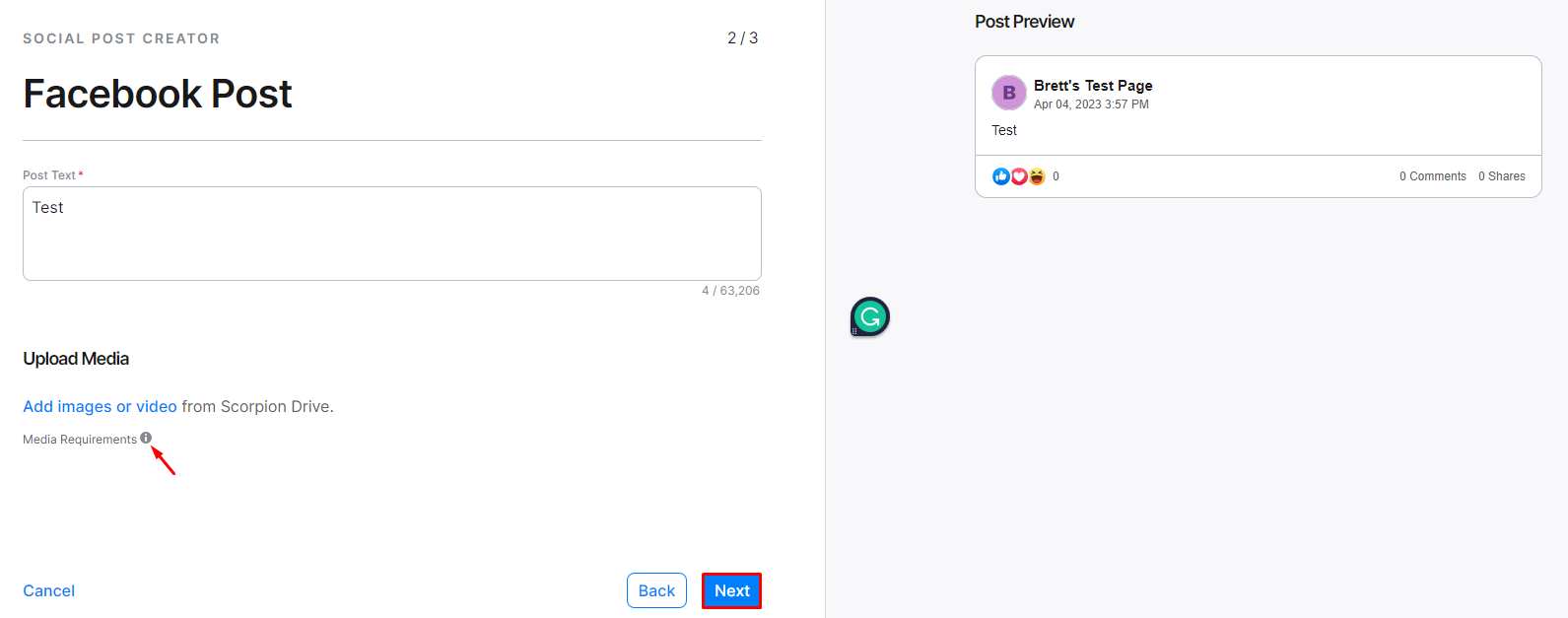
- Click Next and continue to customize the posts for all platforms, if applicable.
- Confirm your post details on the Review & Publish screen and click Publish once everything looks good and is validated.