

How to Reply to a Review
One of the most important features of the Reputation Suite is the ability to directly engage with your customers by replying to reviews that you receive.
- Navigate to the Reviews section by selecting the Reputation Suite in the left-hand navigation and clicking on Reviews in the upper navigation. You can also go straight to the section and get started.
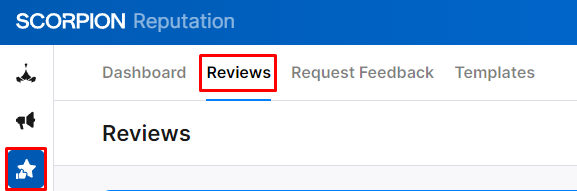
- Click on All Reviews to see all reviews that your business has received over time. You can work through everything here or you can use the filter to see exactly the reviews you’re most interested in. This might be reviews on specific channels (such as Facebook) or only reviews of a certain rating.

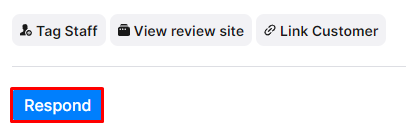
- Find the reviews that need a response and select Respond underneath to open the text box and write your response.
- Note: You can only reply to reviews left on Google Business Profile and Facebook.
- If you would like some suggestions on how to get your reply started, click the blue Suggestions link underneath the text box. You will get several different options based on the review (i.e., unique suggestions for 5-star reviews). Select the suggestion you want to use and then you can either edit the suggestion you selected or write your own unique response.
- Once you’re satisfied with the reply, select the send icon to the right of the text field. This will post your response on the appropriate channel.
